- Small jobs do not need big apps. Adding up a few numbers, writing a short note or making one simple graphic does not need Excel, Word, PowerPoint or Photoshop.
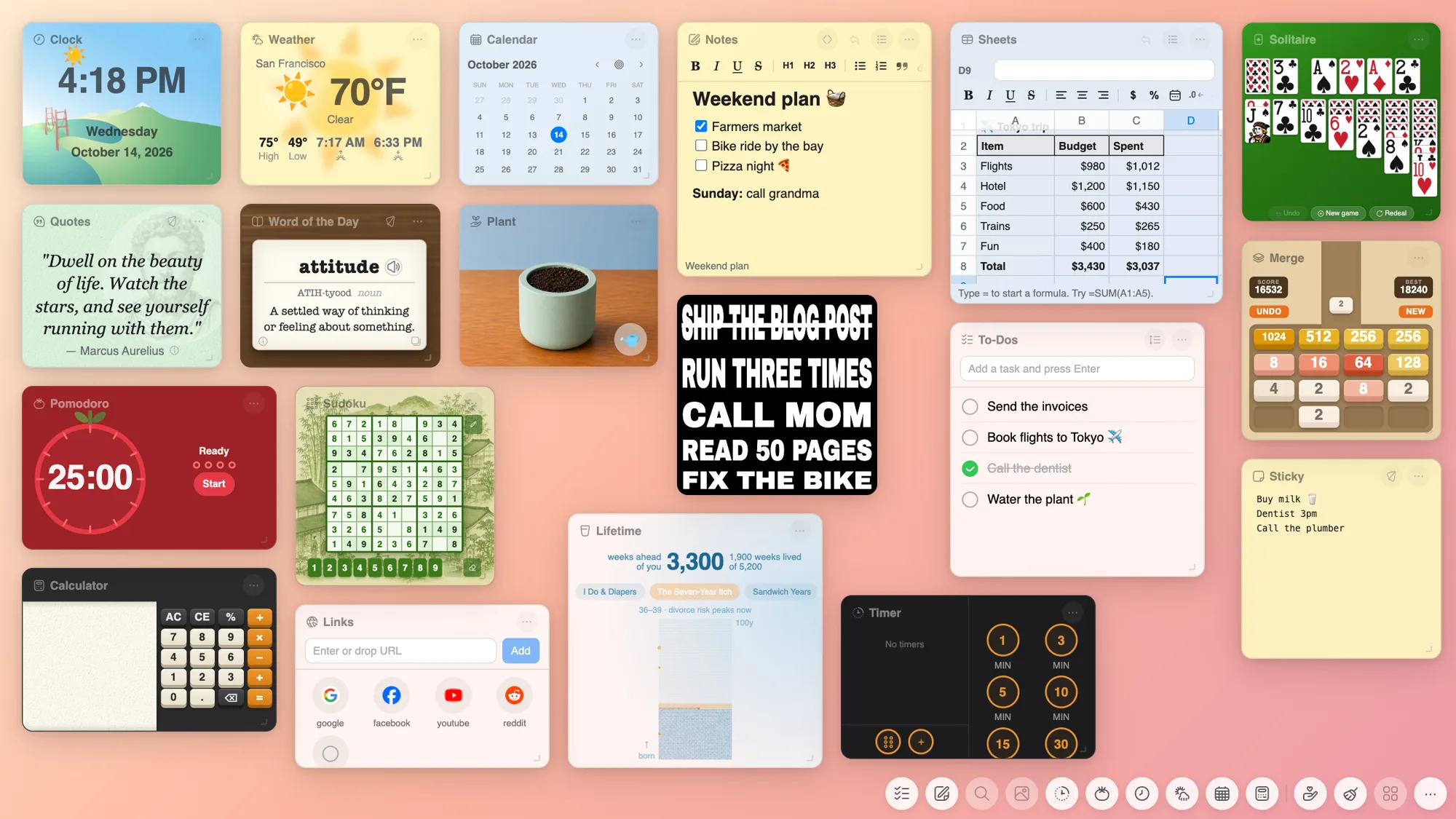
- Three widgets cover the quick jobs. The Sheets widget for numbers, the Notes widget for writing, and the Canvas widget for pictures.
- The Notes widget opens Markdown from AI. When OpenAI's ChatGPT or Anthropic's Claude gives you a Markdown document, import it into the Notes widget and read it fully formatted.
- They are ready the moment you open a new browser tab. No app to launch, no sign-in, no waiting. They sit on your browser start page with everything else.
- They are made for quick jobs, on purpose. For big projects you still open the full app. For the small things you need right now, the widgets are already there.
- Free, no account, and your files stay on your computer.
Free. Everything stays on your computer. No account needed.
 Get the Chrome Extension
 Get the Safari Extension
Every day I have small jobs that take a minute. Split a dinner bill. Add up a trip budget. Write a quick letter. Put an arrow on a screenshot. Make a birthday invitation. Each one is tiny, and each one can mean opening a big program, waiting for it to start, and finding my way through menus made for much bigger work.
Now I open a new browser tab instead. Cute Desk App, my free browser start page, has three widgets made for exactly these jobs: Sheets, Notes and Canvas. They are on the desk the moment the tab opens, they save as I type, and when the job is done I close the tab and move on.
Small jobs do not need big apps
Microsoft Excel, Microsoft Word, Microsoft PowerPoint and Adobe Photoshop are excellent programs. They are also big. They are made for long reports, financial models, full slide decks and professional photo work, and they bring all of that with them every time you open them, even when all you want is to add up five numbers.
For the quick jobs, what matters is different:
- It is already open. The widget is on the page you see every time you open a new browser tab.
- It does one thing well. A small spreadsheet, a small word processor, a small design tool. The buttons you need are right there.
- It saves by itself. No save dialog, no file name to think of. Close the tab and your work is still there next time.
- It costs nothing. No subscription for a job that takes a minute.
The Sheets widget: quick math without opening Excel
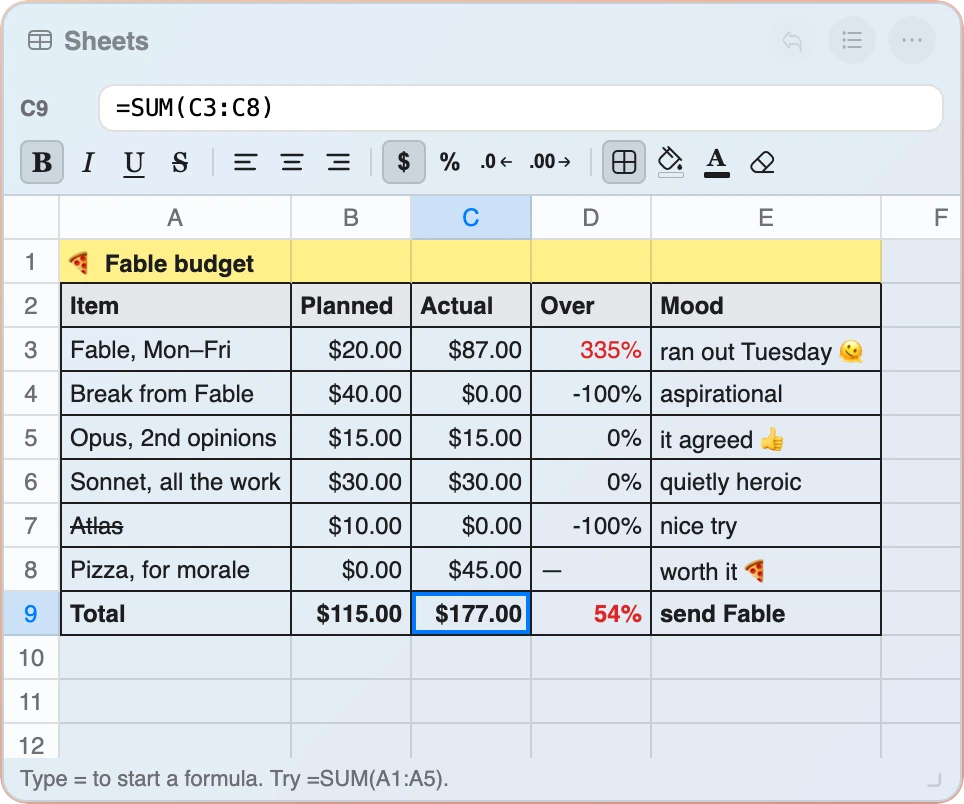
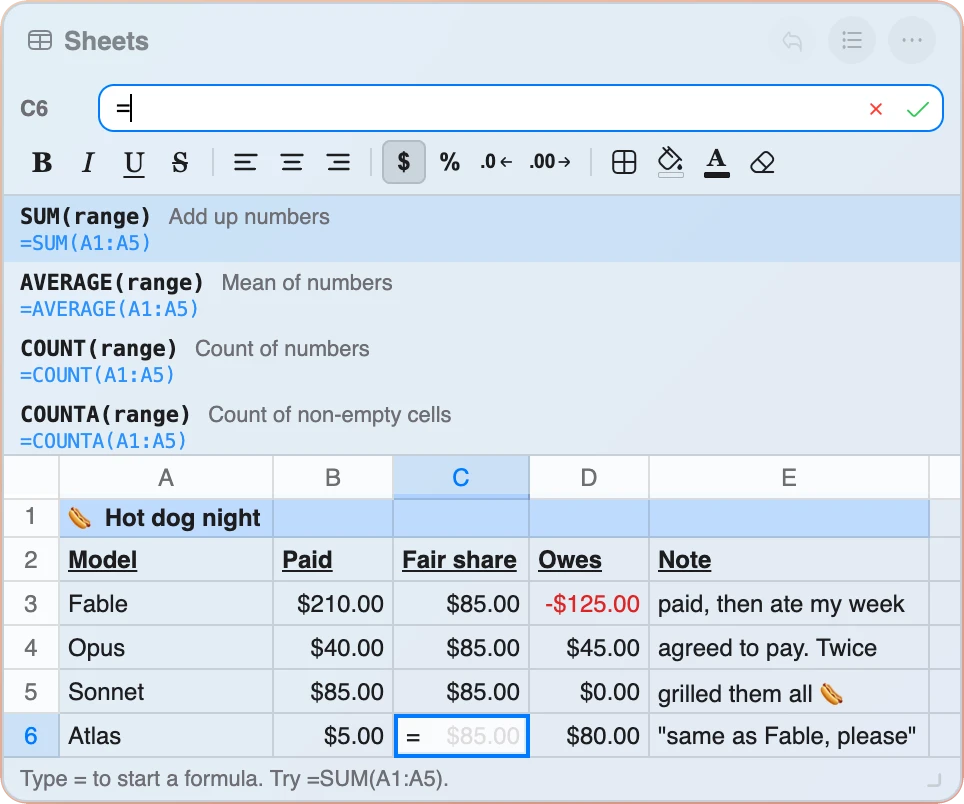
The Sheets widget is a small spreadsheet with real formulas. Type your numbers, type =SUM( and it suggests the range. It has a formula bar, a list of functions with a preview of the result as you type, and the keyboard shortcuts you already know from Excel.
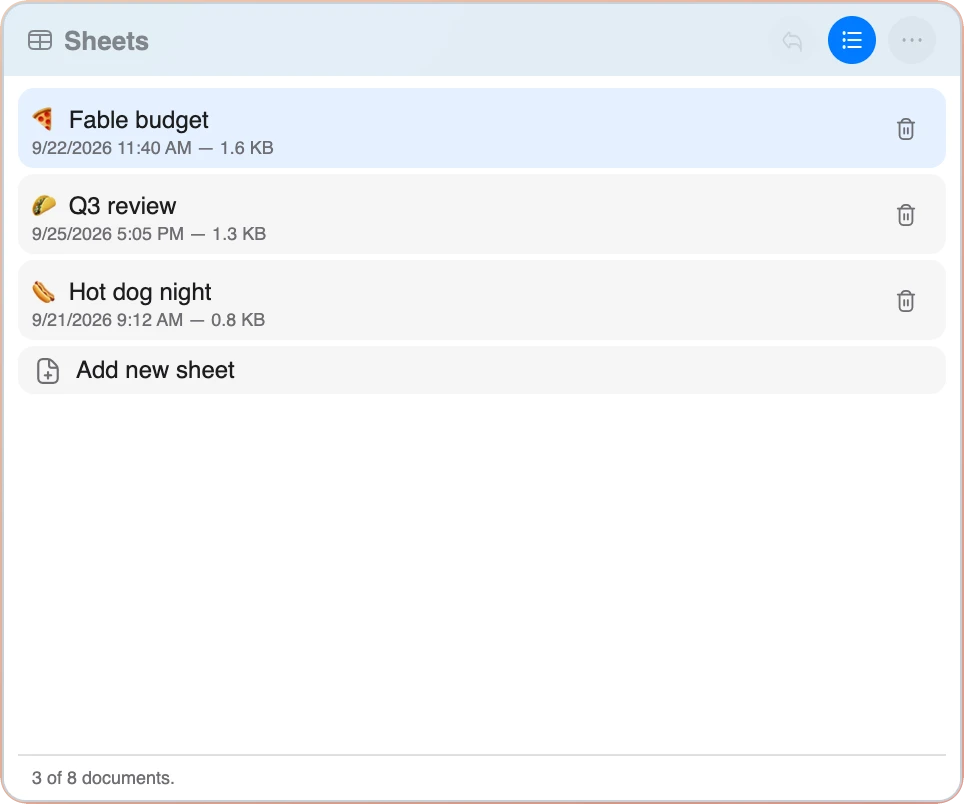
What it can do:
- Real formulas. SUM, AVERAGE, MIN, MAX, COUNT, MEDIAN, ROUND, IF, SUMIF, COUNTIF and more, with relative and absolute references like
$A$1. - Formatting. Bold, italic, underline, alignment, money and percent formats, decimals, borders, fill color and text color.
- Sort and sum. Sort a table or a selection, and add up a column with one click.
- Rows and columns. Insert and delete them, up to 1,000 rows.
- CSV in and out. Import a CSV file, or export one that opens in Excel, Numbers or Google Sheets.
- Up to eight sheets, with 50 steps of undo.
Good for: a trip budget, splitting a bill, a shopping list with prices, a quick invoice total, comparing three offers, tracking a small savings goal.
The Notes widget: quick writing without opening Word
The Notes widget is a small word processor built on Markdown. It has a formatting toolbar with headings, bold, italic, underline, lists, checklists, quotes and tables, and underneath it keeps your text as Markdown, the same plain text format that AI assistants write in. That makes it clean, easy to move anywhere, and the easiest way I know to open what your AI gives you.
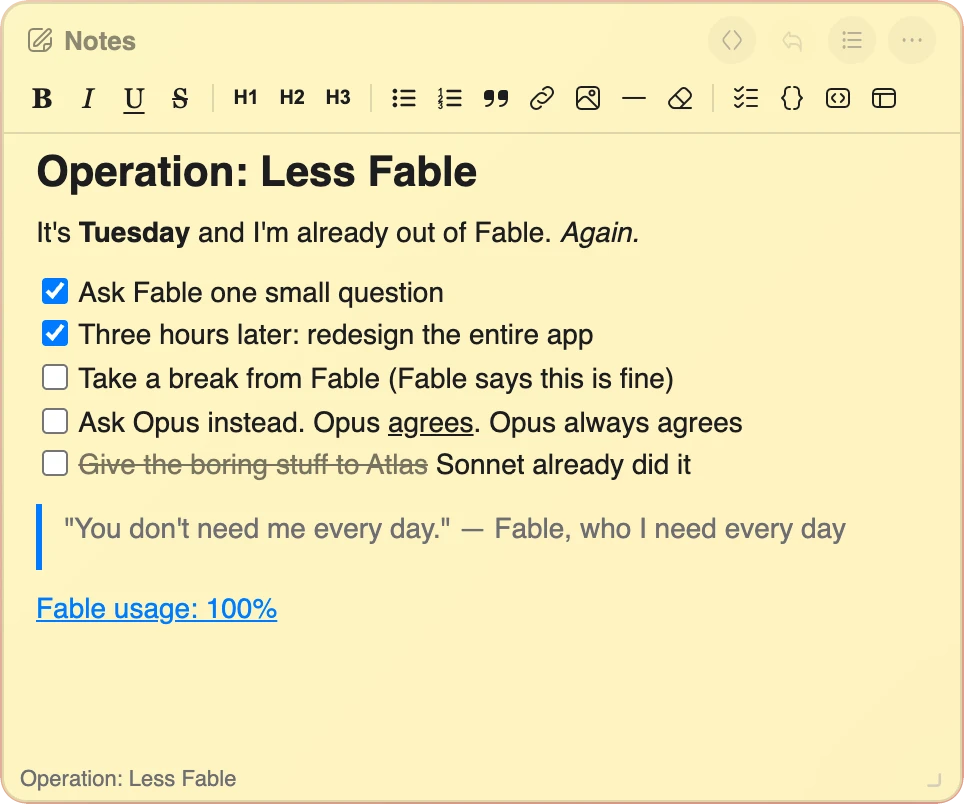
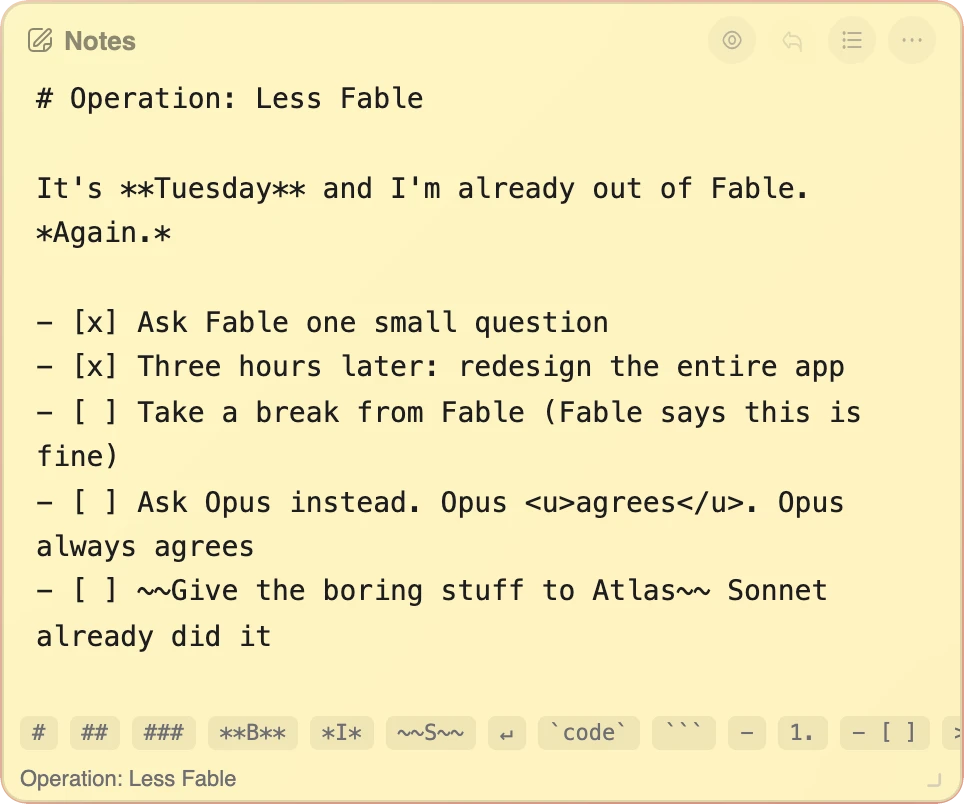
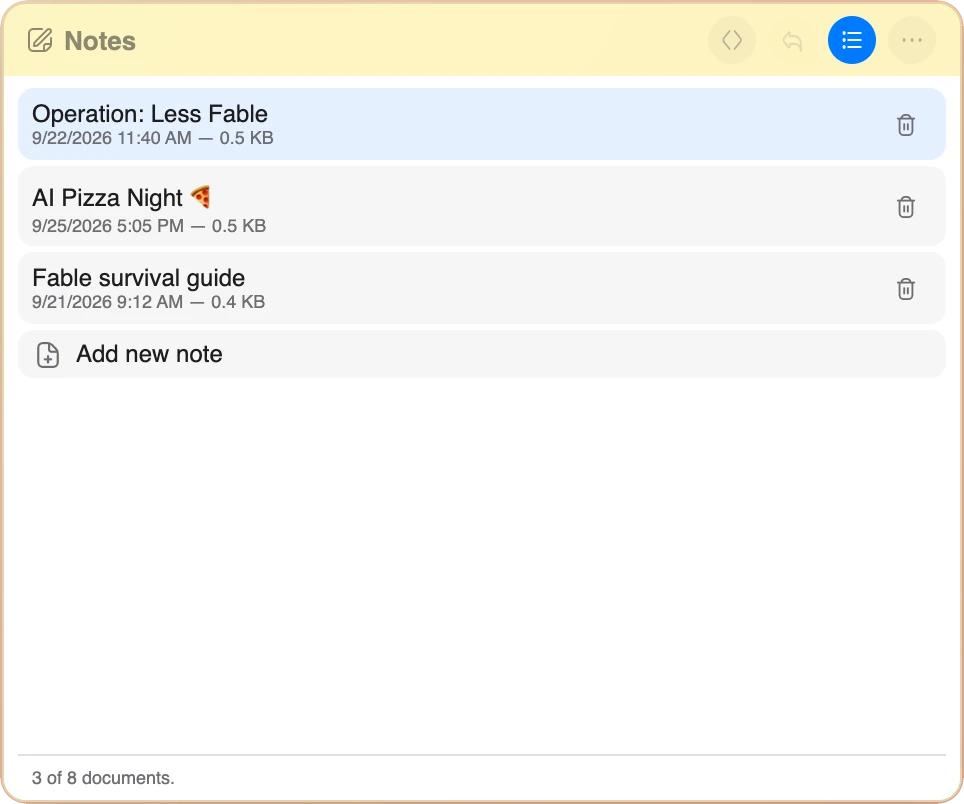
What it can do:
- Word-style formatting. Headings, bold, italic, underline, strikethrough, lists, checklists you can tick, quotes, tables and links.
- Copy that keeps the formatting. Copy a note and paste it into Word or an email, and the headings and lists come with it.
- Made for AI answers. Paste an answer from ChatGPT, Claude or Gemini and see the headings and tables instead of a mess of symbols.
- Real files. Import and export
.mdfiles that open in any Markdown editor. - Room to write. Up to eight documents and 200,000 characters each.
Good for: meeting notes, a short letter, a to-do list for the weekend, a recipe, a packing list, a first draft of an email, and opening a Markdown document from ChatGPT or Claude.
The easy way to open Markdown from ChatGPT and Claude
AI assistants write in Markdown. When you ask OpenAI's ChatGPT or Anthropic's Claude for a plan, a summary, a table or a full document, the answer is Markdown underneath: pound signs for headings, asterisks for bold, dashes for lists and lines of pipes for tables. Very often they also give you a Markdown file to download, with a name that ends in .md.
Open that file in a plain text editor and you see all the symbols. Your computer may not even know which app should open it. The Notes widget shows Markdown the way it is meant to look: real headings, bold and italic text, lists, checklists you can tick, tables, and code blocks with their own Copy button.
- Got a .md file? In the Notes widget, open the ⋯ menu and choose Import .md. The file opens as a new note, fully formatted.
- Got an answer in the chat? Copy it and paste it into a note. Markdown stays Markdown, and formatted text copied from the page is turned back into clean Markdown.
- Read it, edit it, keep it. Change it with the toolbar, keep it next to your other notes, copy it into Word or an email with the formatting, or export it again as a
.mdfile.
It works the same way for Markdown from Google Gemini and any other AI assistant. Ask your AI for a meeting agenda, a trip plan or a study guide as a Markdown document, and the Notes widget is the place to open it.
The Canvas widget: quick graphics without opening Photoshop or PowerPoint
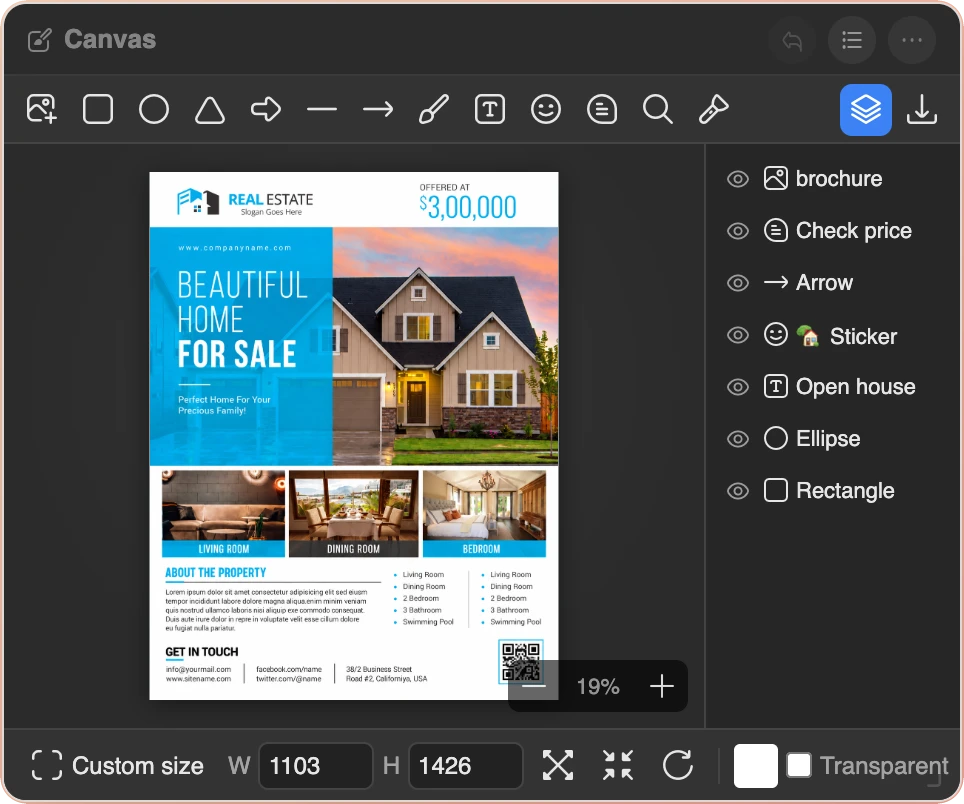
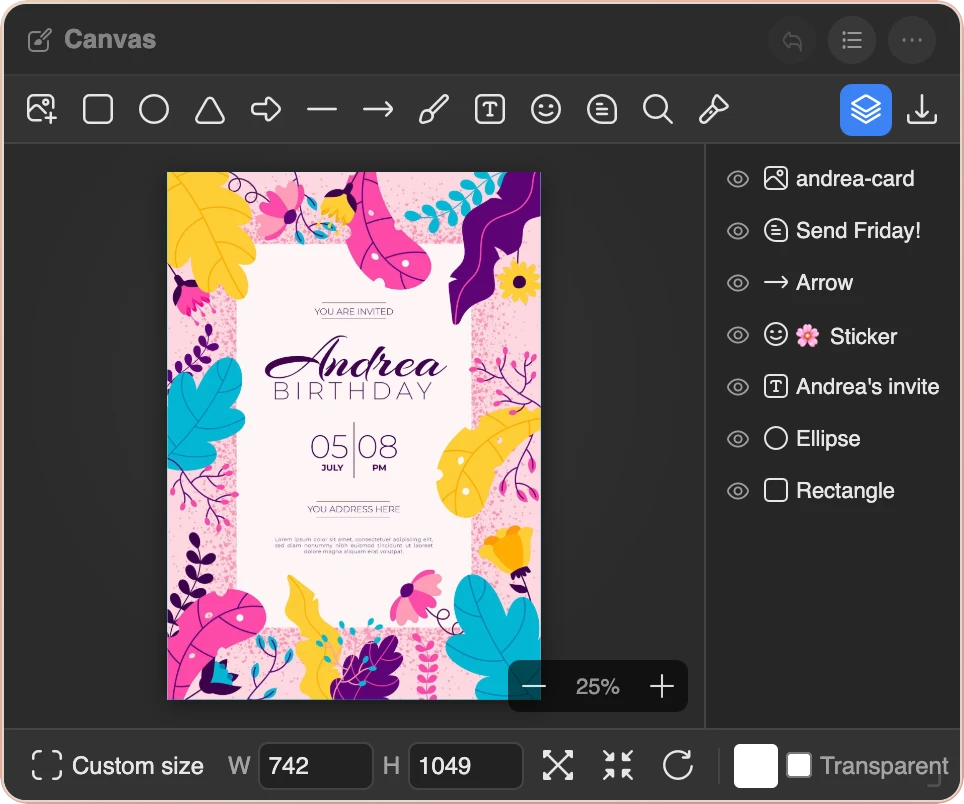
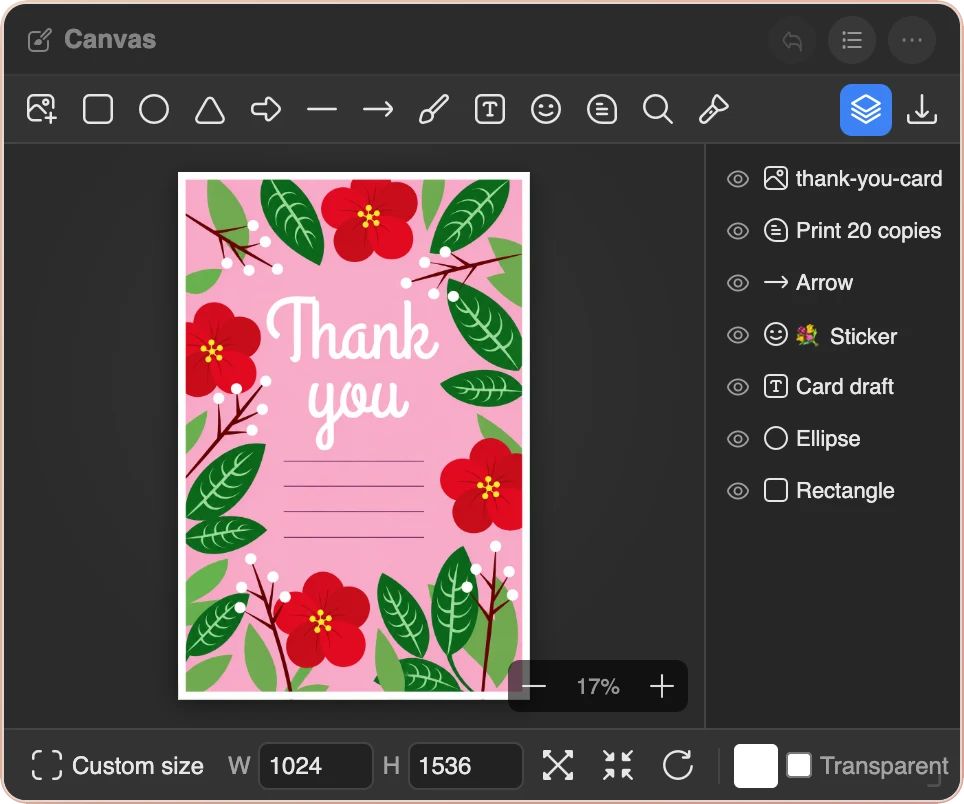
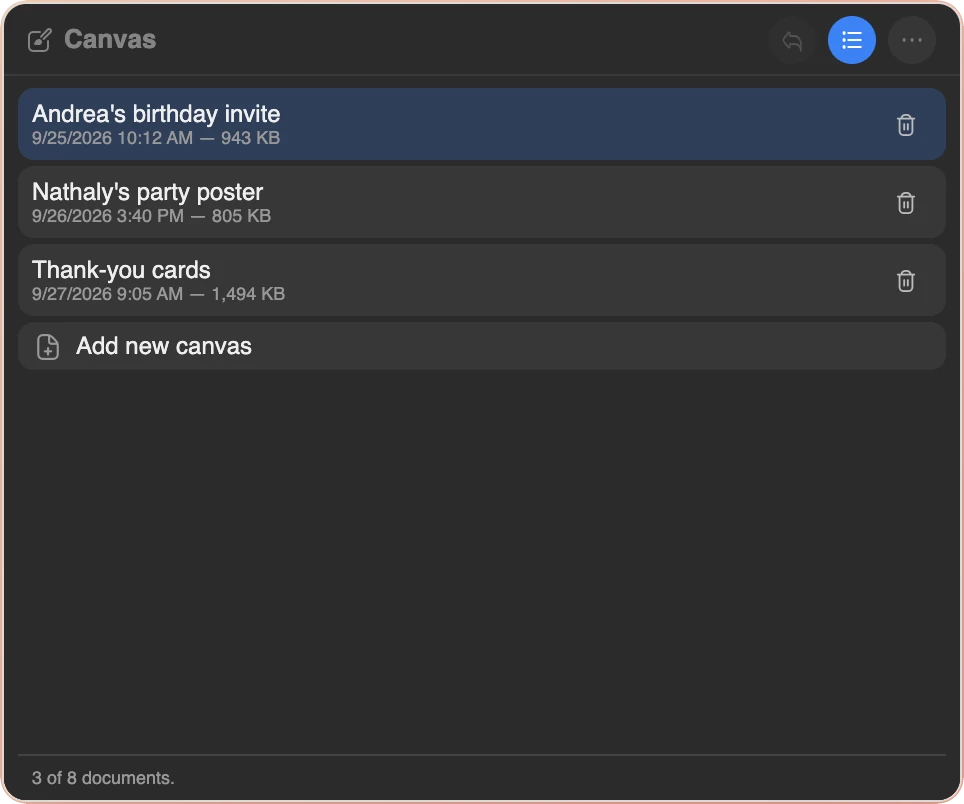
The Canvas widget is a small design studio. Photos, text and shapes sit on layers you can move, resize and rotate. It has sizes ready for social media posts, stories, YouTube thumbnails, Letter and A4 pages, greeting cards, business cards and 16:9 images, plus any size you type in.
What it can do:
- Layers. Add photos by file, drag and drop or paste, then add text, rectangles, circles, lines and emoji stickers. Move, resize, rotate, flip and reorder them.
- Photo adjustments. Brightness, contrast, saturation, blur, black and white, sepia, and Warm, Cool and Vintage looks. Crop, round the corners or cut a photo into a circle.
- Mark up screenshots. Arrows, dashed lines, speech bubbles, a magnifier that zooms into one spot and a spotlight that darkens everything else.
- Text that stands out. Twelve fonts, outlines, shadows and caption boxes.
- Export. PNG, JPEG or WebP at normal or double size, copy to the clipboard, or print and save as PDF.
Good for: an invitation, a thank-you card, a social media post, a YouTube thumbnail, arrows on a screenshot for a support email, a simple flyer, or a single 16:9 title image to drop into a presentation.
Quick jobs, side by side
Here is how I decide. If the job takes a few minutes, I use the widget. If it is a real project, I open the full app.
| The quick job | Use | Instead of opening |
|---|---|---|
| Add up a trip budget | Sheets widget | Microsoft Excel |
| Split a dinner bill four ways | Sheets widget | Microsoft Excel |
| Open a CSV file and total a column | Sheets widget | Microsoft Excel |
| Write meeting notes | Notes widget | Microsoft Word |
| Draft a short letter or email | Notes widget | Microsoft Word |
| Open a Markdown file from ChatGPT or Claude | Notes widget | TextEdit or Notepad |
| Keep an AI answer with its formatting | Notes widget | Microsoft Word |
| Make a birthday invitation | Canvas widget | Adobe Photoshop |
| Put arrows on a screenshot | Canvas widget | Adobe Photoshop |
| Make a YouTube thumbnail | Canvas widget | Adobe Photoshop |
| Make one 16:9 title image | Canvas widget | Microsoft PowerPoint |
What these widgets are not
I want to be clear about this, because it matters. The Sheets, Notes and Canvas widgets are small tools for quick jobs. They are not full replacements for the big programs, and they do not try to be.
- Use Excel for pivot tables, charts, macros, shared workbooks and very large files.
- Use Word for long documents, track changes, page layout, footnotes and mail merge.
- Use PowerPoint for a full slide presentation with transitions and speaker notes.
- Use Photoshop for professional retouching, large print work and complex editing.
When a quick job grows into a real project, nothing is lost. Export the sheet as CSV and open it in Excel, copy the note into Word, or save the canvas as a PNG and place it in your presentation.
Your files stay on your computer
There is no account and no cloud. Your sheets, notes and canvases are saved in your browser on your computer, every time you type. Nothing is uploaded anywhere. Each widget keeps up to eight documents, and you can export any of them as a real file: CSV from Sheets, Markdown from Notes, and PNG, JPEG, WebP or PDF from Canvas.
Open the same desk in two browser tabs and they stay in sync. Close the browser, open a new browser tab tomorrow, and your work is exactly where you left it.
Ready the moment you open a new browser tab
Sheets, Notes and Canvas are three of the 33 free widgets in Cute Desk App. To have them on every new browser tab, install the free extension for your browser. Microsoft Edge can use the Chrome extension, and in any other browser you can open cutedesk.app and set it as your homepage.
Free. Everything stays on your computer. No account needed.
Next time a small job comes up, open a new browser tab and do it right there. If there is a quick job these widgets cannot do yet, tell me through the Help page.
 Aldo
Aldo
Microsoft Excel, Microsoft Word, Microsoft PowerPoint and Microsoft Edge are trademarks of Microsoft Corporation. Adobe Photoshop is a trademark of Adobe Inc. OpenAI and ChatGPT are trademarks of OpenAI. Anthropic and Claude are trademarks of Anthropic PBC. Numbers and TextEdit are trademarks of Apple Inc., and Google Sheets and Gemini are trademarks of Google LLC. Notepad is a trademark of Microsoft Corporation. Cute Desk App is made by me and is not affiliated with any of them.