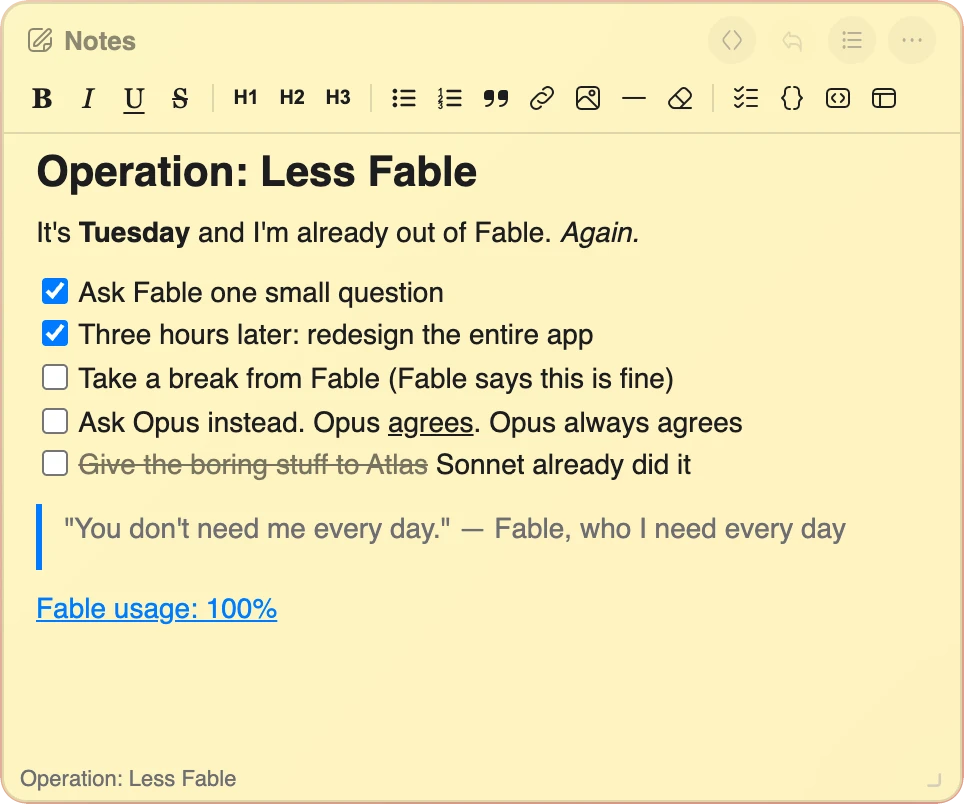
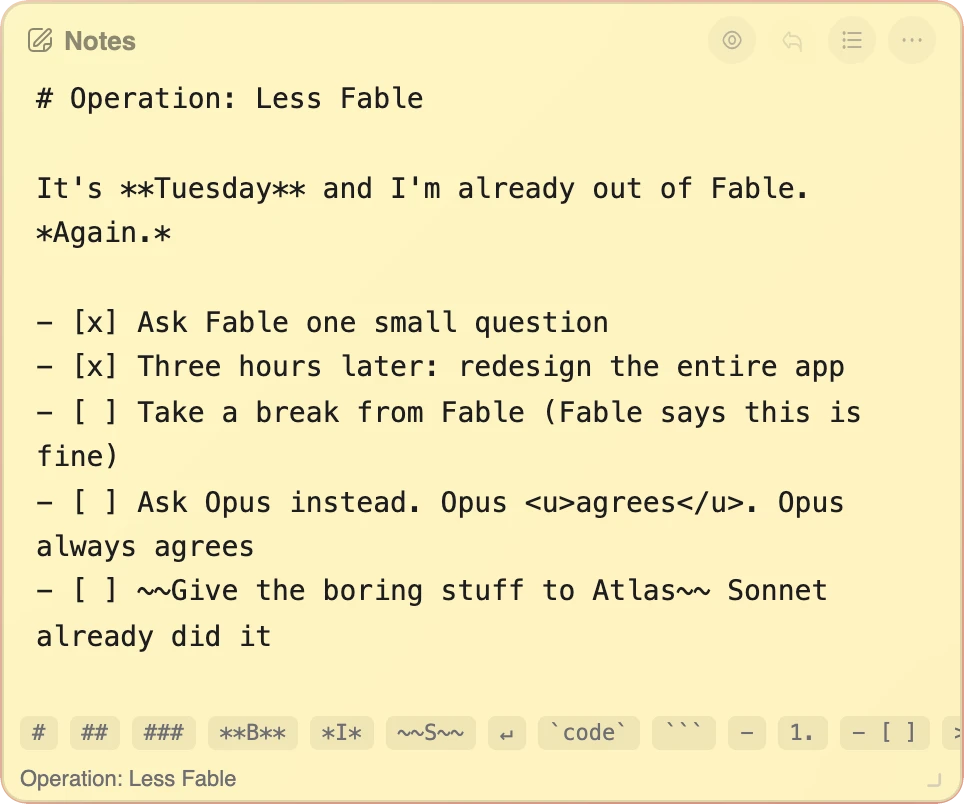
- Live rendered Preview and a raw Markdown Source view, one click apart
- Headings, bold/italic/strikethrough, nested lists, tables, code blocks, blockquotes, and clickable checklists
- A built-in syntax cheat sheet — hover any chip to see how it works
- Great for reading Markdown straight out of ChatGPT, Claude, or any AI
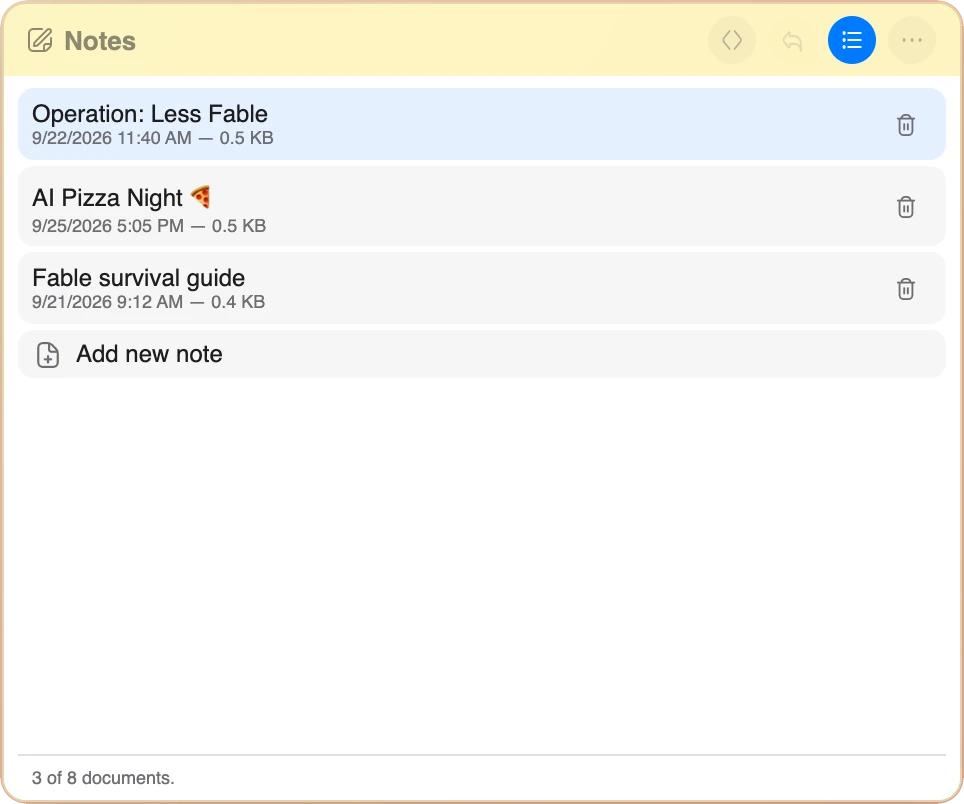
- Up to 8 documents in one widget, listed in the document view where you name, open, add and delete them
- Copy as plain Markdown or as formatted rich text
- Import and export real
.mdfiles - Undo right from the title bar, redo in the menu
- Autosaves instantly and stays in sync across every open tab
Everything Markdown Can Do
Not a toy renderer — real formatting, safe by default, built for a widget instead of a full editor.
Preview & Source, One Click Apart
Write raw Markdown in Source, then hit the eye icon (or Ctrl/Cmd+E, or just double-click the Preview) to see it rendered. An empty document always opens in Source — there's nothing to preview yet.
Real Markdown Rendering
Headings, bold/italic/strikethrough, ordered and nested lists, blockquotes, fenced code blocks with a language label and a one-click Copy button, tables with column alignment, horizontal rules, links, and GFM-style checklists you can click straight from Preview.
A Cheat Sheet Built Right In
Source view shows a row of syntax chips — heading, bold, list, checklist, table, code block, and more. Hover one and a tooltip shows its name and a real example, so you can pick up Markdown as you go instead of looking it up elsewhere. Bold, italic, strikethrough, and links also answer to the usual keys: Ctrl/Cmd+B, I, Shift+X, and K. Enter continues a list, checklist, or quote on the next line, and Tab / Shift+Tab nest and un-nest list items.
Made to Read AI Output
ChatGPT, Claude, and Gemini all answer in Markdown by default. Paste it in, switch to Preview, and read it the way it was meant to look — headings, tables, and code blocks included — instead of a wall of asterisks and pound signs. Copied the formatted answer from the page instead? Rich text is converted back into clean Markdown on paste, and so is anything you copy from a web page or a Google Doc.
Up to 8 Documents
Keep a small collection right in the widget — meeting notes, a recipe, that AI-generated outline. The list icon in the title bar opens the document view: every note with its name, when it last changed and how big it is. Click one to open it, click its name to rename it, and add or delete notes right there.
Copy & Paste That Behaves
Copy writes both the raw Markdown and a formatted rich-text version to your clipboard, so pasting into an email keeps the formatting and pasting into another Markdown tool keeps the source. Paste in Preview appends cleanly after a blank line.
Import & Export .md Files
Export any document as a real .md file that opens in any Markdown editor. Import one back in — including a file this widget exported itself — and it lands as a fresh document, ready to edit.
Undo & Redo
The title-bar Undo button covers your last edit, per document — grayed out the moment there's nothing to undo, so you always know where you stand. Redo waits in the three-dot menu (or Ctrl/Cmd+Shift+Z).
Autosave, Always
Every keystroke saves automatically — no save button, nothing to lose. Open the same start page in another tab and it's already there, kept in sync the moment either one changes.