Help
Having a question or widget suggestion? Send me a message and I'll get back to you as soon as possible.
Contact Me
Fill out the form below and I'll respond to your email.
Chatbot

A free built-in AI chatbot — no setup required.
What It Does
The Chat widget gives you a sassy, fun AI companion right on your start page. The AI is built in — no API key, no account, no setup. It's designed for light, playful conversations: quick questions, curiosities, a bit of fun. Keep in mind that messages are capped at 200 characters and responses are intentionally short, so it's not suited for long-form writing or deep research — think of it as a fun little chat buddy, not a full AI assistant.
Free Daily Limit
Because the built-in AI is provided as a free service, there is a limit of 15,000 tokens per day — roughly 30–40 back-and-forth messages. That's plenty for casual daily use. The widget shows your remaining token count so you always know where you stand. The limit resets at midnight each day.
- Do not share personal information
- For fun and exploration only
- Your prompts are not private
- Messages are sent to Google AI
- Responses may be inaccurate
- Not professional advice
Optional: Connect Your Own OpenAI Key
If you want unlimited usage or prefer GPT models, you can connect your own OpenAI API key. Open the Chat widget settings and enter your key along with a password to encrypt it. Your key is stored locally using AES-GCM encryption and is never sent anywhere except to OpenAI directly. Once a key is saved, the widget switches to OpenAI mode automatically. You can switch back to the free built-in mode at any time from the settings.
How to Get an OpenAI Key
Create a free account at platform.openai.com/signup, then generate an API key at platform.openai.com/api-keys. Paste the key into the Chat widget settings along with a password to encrypt it.
Does It Cost Money?
The built-in mode is completely free up to the daily token limit. If you connect your own OpenAI key, OpenAI may charge for usage depending on your account and the model you select — check your OpenAI usage dashboard for details. If you don't want to use Chat at all, you can disable the widget from its settings panel.
Solitaire
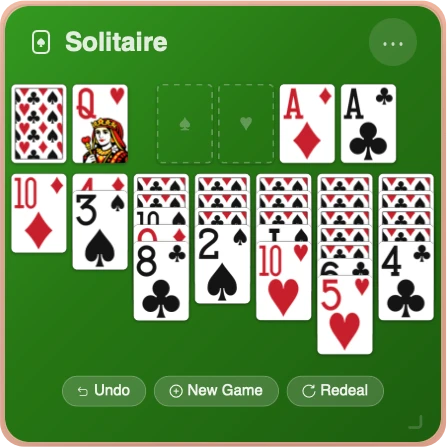
Classic Klondike Solitaire — the timeless card game.
How to Play
Cards are dealt into 7 columns. Build tableau stacks in descending order, alternating colors (red on black, black on red). Click the stock pile to draw cards one at a time. Only Kings can be placed on empty columns.
Drag cards between columns or double-click a card to send it to its foundation automatically. Use the stock pile to cycle through remaining cards.
How to Win
Move all cards to the four foundation piles, building each suit from Ace up to King.
How to Lose
There's no score or timer — take your time. If no legal moves remain, the game shows a "No moves" message. You can undo or start a new game at any point.
Tips
Use Undo (up to 50 steps) if you get stuck. You can also Redeal the same cards to try a different strategy.
Breakout
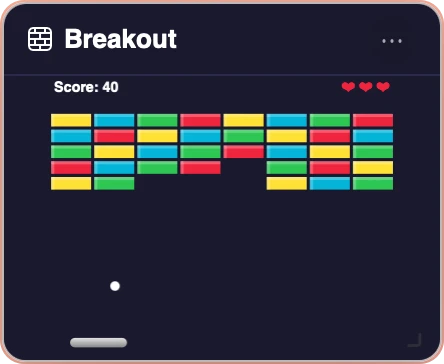
The classic arcade brick-breaker — bounce, aim, and clear the board.
How to Play
Move the paddle with your mouse, touch, or arrow keys. Press Space or click to launch the ball. Bounce it off the paddle to break bricks. Where the ball hits the paddle affects the angle — hitting near the edges sends it more sideways.
How to Win
Clear all 40 bricks to win the game.
How to Lose
You start with 3 lives. You lose a life each time the ball falls below the paddle. Lose all 3 lives and the game is over.
Scoring
Each brick is worth 10 points. A perfect game scores 400 points. The ball speeds up as you break more bricks, so the later bricks are harder to hit. Your best score is saved automatically.
Merge
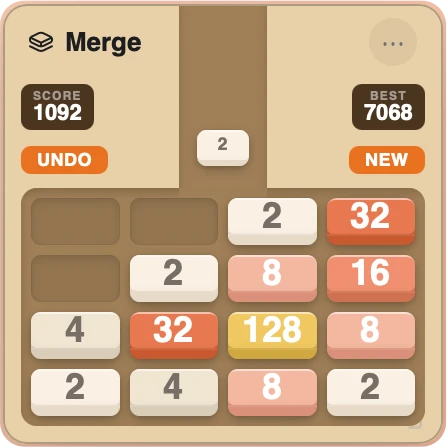
Slide, merge, and reach 2048 — with a twist.
How to Play
Swipe or use the arrow keys to slide all tiles in one direction. When two tiles with the same number collide, they merge into one tile with double the value (e.g. 2 + 2 = 4, 4 + 4 = 8).
The twist: new tiles spawn on the edge opposite to your move. Swipe left and the new tile appears on the right. This makes every move more strategic than standard 2048.
A preview shows whether the next tile will be a 2 or a 4, so you can plan ahead.
How to Win
Reach a 2048 tile. You can keep playing after that to push your score higher.
How to Lose
The game ends when the board is full and no adjacent tiles can merge.
Scoring
You earn points equal to the value of each merged tile. Merging two 16s into a 32 gives you 32 points. Bigger merges are worth more, so building toward high-value tiles is the key to a high score. Your best score is saved automatically.
Sudoku
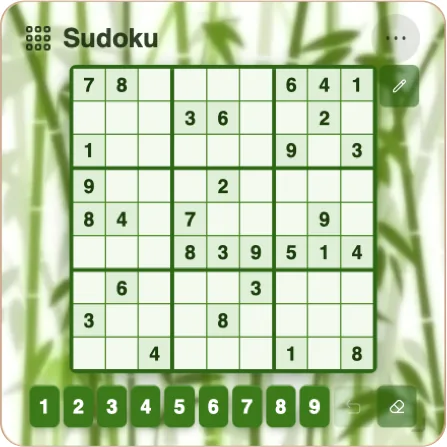
The classic 9×9 number puzzle — fill every row, column, and box.
How to Play
The board is a 9×9 grid divided into nine 3×3 boxes. The goal is to fill every empty cell with a digit from 1 to 9 so that each digit appears exactly once in every row, every column, and every 3×3 box.
Click or tap a cell to select it, then tap a digit button at the bottom (or press a number key on your keyboard) to place that digit. Gray pre-filled cells are the starting clues and cannot be changed.
Notes Mode
Toggle the pencil button to switch into Notes mode. In this mode, tapping a digit writes it as a small candidate note inside the cell instead of placing it as a final answer. Tap the same digit again to remove it. Notes are cleared automatically from peer cells when you place a digit in normal mode.
Difficulty Levels
Open the widget menu (⋯) to choose a difficulty before starting a new game:
- Easy — 36 pre-filled clues, straightforward logic chains.
- Medium — 30 pre-filled clues, requires a bit more deduction.
- Hard — 24 pre-filled clues, best for experienced solvers.
Every puzzle is generated with a guaranteed unique solution, regardless of difficulty.
Hint
Stuck? Tap Hint from the widget menu to reveal the correct digit for a random empty cell. The hinted cell briefly flashes to show where the answer was placed.
Check
Tap Check from the widget menu to highlight any incorrectly placed digits in red. The highlight disappears after a few seconds — use it as a nudge, not a crutch.
Undo
Made a mistake? The undo button (↩) at the bottom of the board steps back one move at a time, up to 50 moves. You can also press Ctrl+Z (or Cmd+Z on Mac) on your keyboard.
Keyboard Shortcuts
When the Sudoku widget is focused, you can use the full keyboard:
- Arrow keys — move the selected cell up, down, left, or right (wraps around).
- 1–9 — place a digit (or add/remove a note in Notes mode).
- 0, Backspace, Delete — clear the selected cell.
- N — toggle Notes mode on/off.
- Ctrl+Z / Cmd+Z — undo the last move.
How to Win
Fill every cell correctly and the board is complete — a congratulatory message appears with the option to start a new game.
Breath
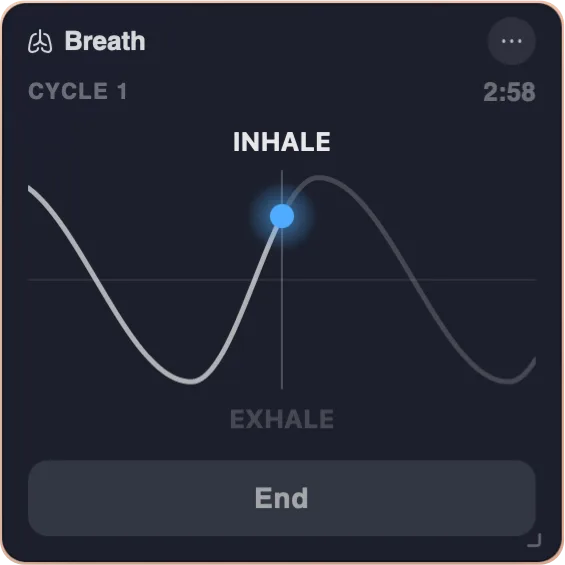
Guided breathing for focus, calm, and better sleep. Learn more about the Breath widget →
Starting a Session
Open the Breath widget from your dock. Choose a technique using the arrow buttons and select a session duration (1, 3, 5, or 10 minutes) directly on the main screen, then press Begin. Follow the animated waveform — a glowing dot rides the curve while phase labels (Inhale, Hold, Exhale) update in real time.
Breathing Techniques
- Calm — 4·6 — Inhale 4 seconds, exhale 6. The longer exhale activates the parasympathetic nervous system. Best for everyday stress and winding down.
- Box — 4·4·4·4 — Equal inhale, hold, exhale, hold phases. Used by high-performance professionals to stay focused under pressure.
- 4-7-8 — Inhale 4, hold 7, exhale 8. Developed by Dr. Andrew Weil; popular for falling asleep faster and calming an anxious mind quickly.
- Physiological Sigh — A double inhale through the nose followed by a long, slow exhale. Stanford-researched technique; one of the fastest ways to reduce physiological stress in real time.
- Coherence — 5·5 — Inhale 5, exhale 5 (6 breaths per minute). Maximizes heart rate variability (HRV) and builds long-term resilience.
- Not a medical device
- Consult a healthcare professional
Voice Recorder
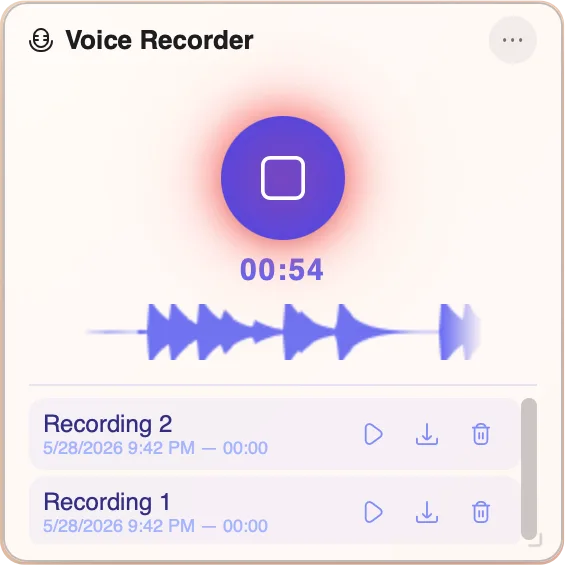
Capture ideas and reminders by voice. Learn more about the Voice Recorder widget →
Recording
Open the Voice Recorder widget and press the record button. Speak your memo and press stop when you're done. Your recording is saved automatically and appears in the list below the controls.
Granting Microphone Access
The first time you record, your browser will ask for microphone permission. Click Allow. If you accidentally blocked it, click the lock icon in your browser's address bar, find the Microphone setting, and change it to Allow, then refresh the page.
Playback
Tap any recording in the list to play it back immediately. Tap again to pause.
Renaming a Recording
Tap the name of any recording to edit it inline and give it a meaningful label.
Downloading
Tap the download icon next to a recording to save it as an audio file to your device.
Privacy
All recordings are stored privately in your browser using IndexedDB. Nothing is ever uploaded or sent to a server.
Mirror
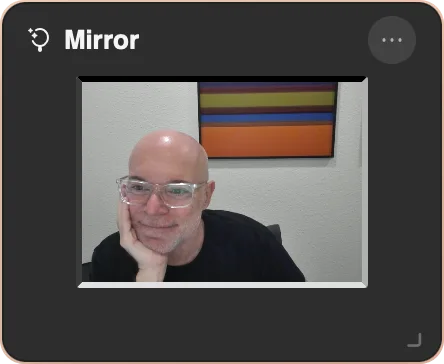
A live camera mirror on your start page. Learn more about the Mirror widget →
How It Works
The Mirror widget shows a live, horizontally-flipped feed from your webcam — just like a real mirror. It activates automatically when the widget is visible and stops the camera the moment you close or hide it.
Granting Camera Access
The first time the Mirror widget opens, your browser will ask for camera permission. Click Allow. If you blocked it, click the lock icon in your browser's address bar, set Camera to Allow, then reload. You can also tap the Camera access option in the widget's menu (⋯) to re-request permission.
No Camera Found
If no camera is connected to your device, the widget shows a placeholder message. Connect a webcam and reopen the widget to start using it.
Privacy
Nothing is ever recorded or stored. The camera is released immediately when you close or hide the widget — no background access.
Tangles
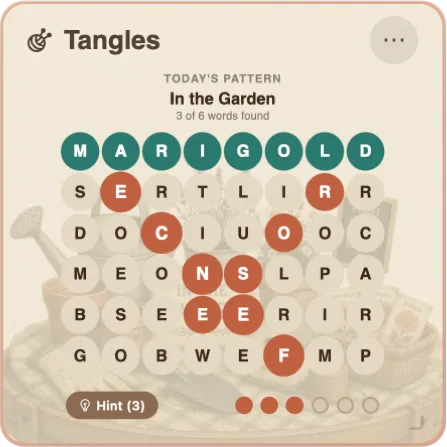
A fresh word-finding puzzle every day. Learn more about the Tangles widget →
How to Play
Every day brings a new themed puzzle on a grid of letters. Your goal is to find all of the hidden words — they're all related to the day's theme — plus one special Thread word that ties the whole pattern together.
Tracing Words
Drag across the grid to trace a word, connecting one letter to the next. Words can run in any direction — horizontal, vertical, or diagonal — and may bend and change direction along the way. Release when you've spelled a complete word: correct words stay highlighted, while incorrect guesses simply clear so you can try again.
The Thread
One special word — the Thread — weaves through the grid and reveals the connection between every other word. Find all the theme words and the hidden Thread to fully complete the puzzle.
Hints
Stuck? You get 3 free hints per puzzle. Each hint reveals the full path of one word on the grid.
Streaks & Stats
Tangles tracks your Played, Solved, Streak, and Best so you can keep your daily run going. Progress saves automatically — close the widget and pick up right where you left off.
Updates
Release history and recent changes.
- Added the Sticky widget — a second freeform notepad for your start page, styled like a sticky note, with its own auto-save, font sizes, and clear/copy options separate from the Notes widget.
- Added the Lifetime widget — your life as a glass of water, with one drop for every week of a 100-year life. Enter your date of birth once and watch the weeks fill up from the bottom like water, with the current week highlighted and a running count of the weeks still ahead of you.
- Hover any dot to see its month and year, week number, your age that week, and how many weeks come before and after. Gold dots mark ages 18 and 65, and a hollow ring marks the average life expectancy for your app language (79 in the US) — hover them to see what each one means.
- Your birth date is stored only in your browser and never leaves your device.
- Added the Word of the Day widget — a paper flashcard that teaches you a new English word every day, with pronunciation audio, easy-to-read phonetics, and an example sentence. Click the card to flip it over and quiz yourself on the meaning.
- Choose your level — Starter, Everyday, or Scholar — the first time you open it, and change it anytime from the widget's Options menu. 365 hand-reviewed words per level, and everything works offline.
- Fixed Tangles header text being unreadable on dark puzzle backgrounds like "Things that Glow".
- Added a custom color picker for your page background — pick any color in flat or gradient mode, grab one from anywhere on screen with the eyedropper, and save your favorites to the preset swatches.
- Widget shadows now automatically adapt for dark and black backgrounds, so every widget stays clearly visible no matter what color you choose.
- Added the Tangles widget — a free daily word-finding puzzle. Trace themed words through a letter grid and uncover the hidden Thread, with a fresh pattern every day.
- The Chrome extension is now available — set Cute Desk App as your new tab page in one click.
- The Safari extension is now available on the App Store.
- Added the Voice Recorder widget — record voice memos with live waveform visualization, instant playback, download, and rename. Everything stored privately in your browser.
- Added the Mirror widget — a live camera mirror styled as a picture frame.
- Added the Breath widget — guided breathing sessions with five science-backed techniques (Calm, Box, 4-7-8, Physiological Sigh, and Coherence), an animated canvas waveform, session ring, streak tracking, and milestone tips.
- Widget Launcher now dims the background when open, making it easier to focus on.
- Clicking outside the Widget Launcher closes it.
- Added keyboard shortcut to open and close the Widget Launcher: ⌥+⇧+W on macOS, Alt+Shift+W on Windows. The shortcut is shown in the launcher button tooltip.
- Added the Sudoku widget — a classic 9×9 number puzzle with Easy, Medium, and Hard difficulty levels, pencil notes mode, hint, check, and unlimited undo.
- Added Widget view to the Widget Launcher — switch between Icon view and Widget view using the new title bar buttons to browse all widgets as rich preview cards.
- Added Clean up to the Widget Launcher title bar and options menu — one tap snaps all open widgets into a neat, non-overlapping layout (also accessible from the main menu).
- Fixed Solitaire phantom-card bug on Windows (Edge and other browsers) — cards now preload when the widget opens and a styled fallback is shown if an image ever fails to load.
- Migrated all widget images from PNG to WebP — 78% reduction in total image weight (5 MB → 1.1 MB).
- Added the Pixel Art widget — a full pixel art editor with pencil, eraser, fill bucket, line, and text tools. Includes an SVG stamp library, multiple color palettes, canvas sizes from 16×16 to 64×64, unlimited undo/redo, and PNG export.
- Added the Pomodoro widget — a beautiful Pomodoro timer with an animated tomato progress ring, automatic work/break phase management, browser notifications, sound alerts, and real-time cross-tab synchronization.
- Added the YouTube widget — watch your favorite YouTube videos right on your start page. Drag and drop or paste any YouTube link, with a dark theme that matches the video player. Video history with thumbnails and titles keeps track of up to 50 videos.
- Added a "What's New" modal that highlights the latest features for new and returning users.
- Added my favorite game, Merge widget, also known by names like 2048 or Threes, but I added my own twist to make it more strategic and fun!
- Added the classic arcade Breakout widget. I wanted to see how a real-time widget with a ball, palet, and physics would behave.
- It's clear now that Cute Desk App has become my canvas to craft small widgets and I see the widget library growing, so I created a widget launcher, similar to Apple's Apps. This will allow me to add more widgets and keep the dock management to 10 widgets.
- Localization in 4 languages, the app and all widgets now support English, Spanish, French, and German. Welcome any French and German speaker users to provide feedback.
- Polished Merge and Solitaire widget sizing — both now use the new Compact tier (220×220) for a tighter fit.
- Sped up onboarding animations for a snappier first-run experience.
- Added marketing consent checkbox to the contact form.
- Added the News widget: Stay informed with world headlines from The Guardian, displayed in a classic newspaper-style layout with 4-hour caching
- Fixed a bug with the Search widget
- Initial release of Cute Desk App