How to Use the Cute Desk App
It takes less than a minute. Follow the steps below for Chrome or Safari and start every browsing session with your personal desktop.
Set Up in Chrome
Three quick steps to make Cute Desk App your Chrome start page.
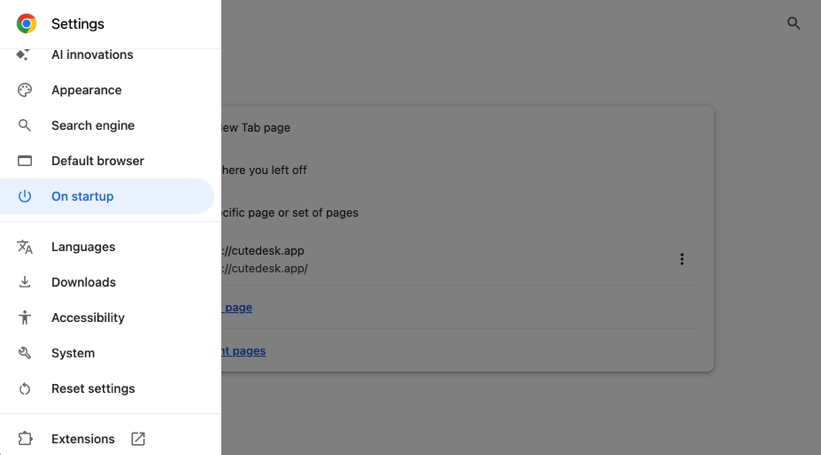
Open Chrome Settings
Click the three-dot menu in the top-right corner of Chrome, then select Settings.
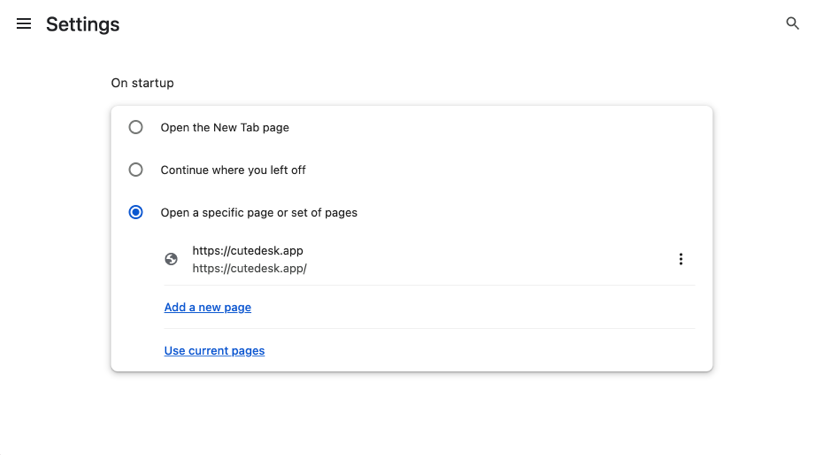
Set your start page
Under "On startup", select "Open a specific page or set of pages" and click "Add a new page".
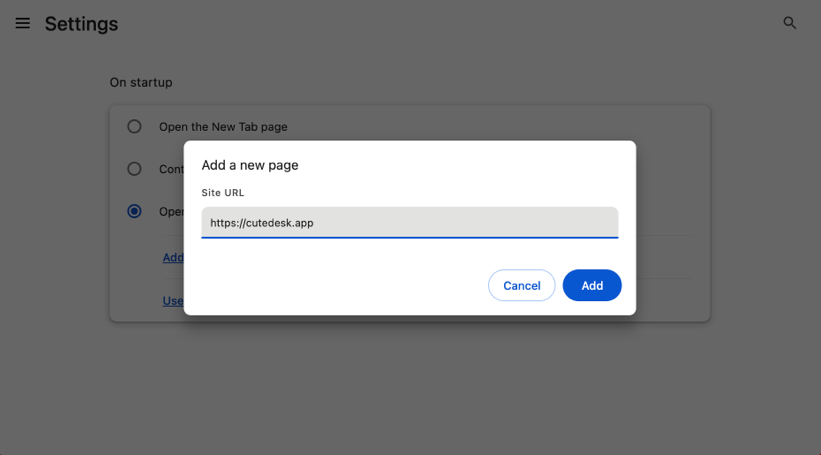
Enter the URL
Type https://cutedesk.app and click Add. That's it — Chrome will now open Cute Desk App every time you launch it.
Set Up in Safari
Three quick steps to make Cute Desk App your Safari homepage. Safari uses the term "homepage" for what other browsers call the start page — same thing, different name.
Open Safari Settings
Click Safari in the menu bar, then select Settings (or Preferences on older macOS versions).
Set Homepage
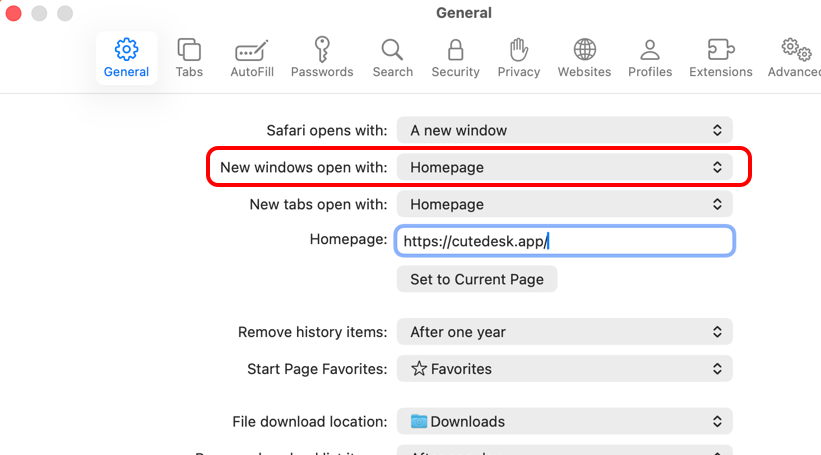
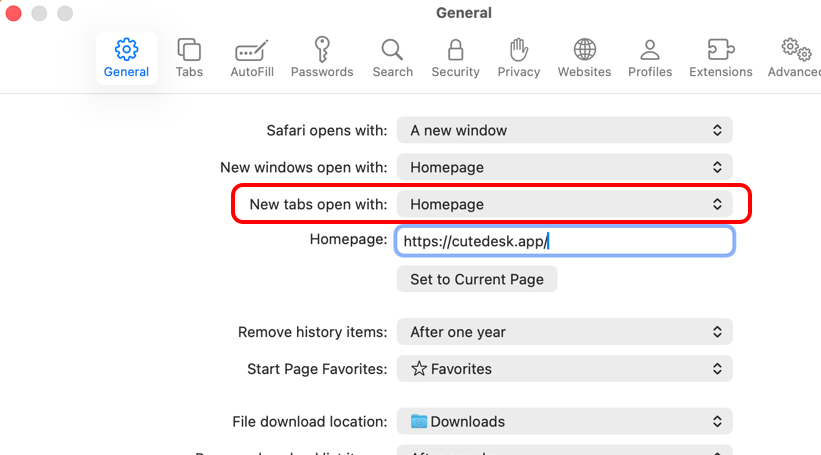
In the General tab, set both "New windows open with" and "New tabs open with" to "Homepage".
Enter the URL
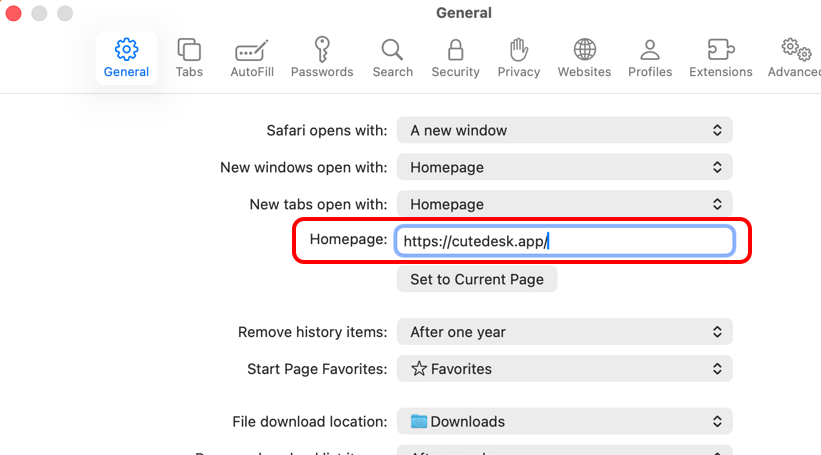
In the Homepage field, enter https://cutedesk.app. Every new window and tab will now load your personal desktop.
Customize Your Desktop
Make it yours — every detail is adjustable.
- Change background colors and gradients to match your mood
- Resize and reposition widgets anywhere on your desktop
- Reorder the dock to put your favorite widgets first
- Hide widgets you don't need — show them again anytime
Frequently Asked Questions
Is Cute Desk App really free?
Yes, completely free. There are no subscriptions, no premium tiers, and no hidden fees. Every widget is available to everyone.
Does it work offline?
Yes. Cute Desk App uses service worker caching so your widgets load even without an internet connection. Some features like weather updates need connectivity to refresh.
Is my data private?
Yes. Everything is stored locally in your browser. Cute Desk App does not collect, transmit, or store any personal data on external servers.
Can I use it on mobile?
Cute Desk App is designed for desktop browsers and works best on screens 1024px and wider. It also works well on tablets in landscape orientation.
How do I add the AI chatbot?
Open the Chatbot widget from the dock, then enter your own OpenAI API key in the settings. Your key is stored locally and never shared. See the Chatbot section on the Help page for a full setup guide.